
Review: Virtual Stage 3
Virtual Stage 3 by Dakine Wave is certainly one of the EASIEST ways to get started with machinima. While the interface is of a unique paradigm, it is built around the production flow of the program and is easy to learn.
Set design is the first step. For those of you who are used to brush-based or sculpt-based map design with a great deal of freedom, it needs to be noted that this is not the method used in this program. Rather, sets come in two basic variants: indoor (which is a box of user-defined dimensions), and outdoor (which is again a user-defined box, but with an environment map for the sky). Texturing is even more limited than, say, set design in The Sims 2, which is relatively primitive itself compared to working with .map files in a first-person-shooter. Some of these limitations can be overcome with the use of prop models: creatively placed, they can give the illusion of an indoor space with separate rooms, halls, etc. And outdoor, you can place all manner of structures in your scene, from small shrubs to massive power plants.
The props are a big strength of Virtual Stage. First of all, in the full version of the program, there is an enormous collection included which are ready to use. And, you can import .3DS models in to use as props, and these models can be easily scaled as needed. This goes a long way to making up for the spatial limits you will be dealing with.
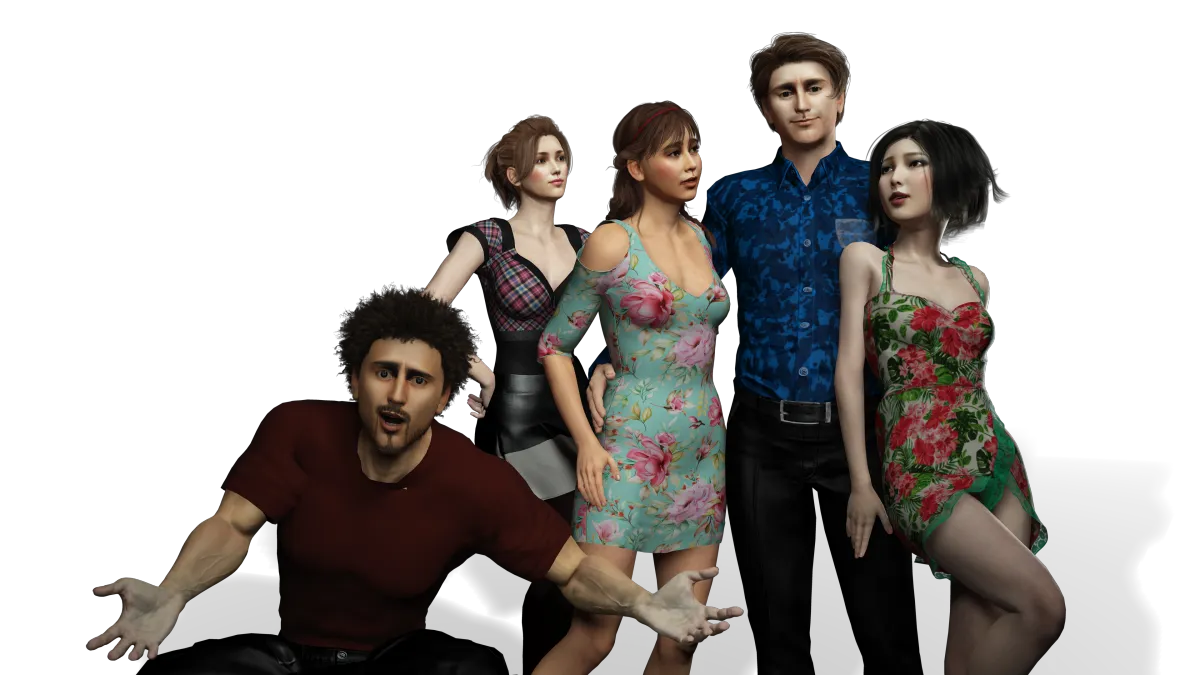
Now it’s time to place your characters. VirtualStage uses 3D character models which are basically chopped up into body parts, thus enabling them to be animated freely within the game. Unlike the props, it is VERY difficult to get new character models into VirtualStage. Not impossible, but certainly a very advanced procedure, and by no means can player models created for other games be easily imported into this environment.
The character animation system itself is very powerful and easy to use. It would be nice to be able to drag models into poses in some way, rather than manipulating them purely through numeric dialogs. In any case, once you get used to what the different controllers represent, it is startlingly easy to create custom animation scripts to get characters to do virtually anything you’d want them to do. The full version of the program also allows you to import BVH motion capture files.
Keep in mind that there is no collision detection in this engine, nor are projectiles or manipulable objects supported. Collision detection was left out deliberately to allow greater freedom, and I think this was a good call. Projectiles may make their way into future versions, but user-manipulable objects are likely a long way off because of the complexity this implementation would certainly involve. For now, Romel Gallamoza has put together a nice document of workarounds for this.
The camera system is simple but works well. Stationary cameras can be placed just about anywhere, and can be switched to in the “script”, which I’ll discuss next. There are no scripted camera movements, those have to be performed “live.”
The action of a scene, including characters moving, talking, and cameras switching, is dictated onto a timeline when the scene is “performed.” You can pause the “performance” at any point to enter dialogue to trigger lipsync, switch cameras, and trigger character animations. Then once this timeline is assembled, it can be edited on another screen with drag-and-drop ease, and at this point sound effects, music, etc. or more actions can be added in as well.
The voices of characters can be handled in one of two ways: 1) using the synthesized voices, and 2) using custom voiceover .wavs. The synthesized voices are convenient for practice, but they don’t have much practical purpose outside pre-visualization purposes. This is not just because of their quality vs. the real thing, but also because of the licensing requirements for using these voices in ANY way other than for yourself on your own computer. The best bet is to use real voiceovers; while the lipsync is not automatic for custom wavs, it is relatively straightforward to add custom lipsync using Pamela or JLipSync with the custom sound files.
To get your performance outside of VirtualStage and into conventional video, you must use a video capture tool (a la Fraps). This worked well for me in testing, but I think you’ll find the ability to export directly to video will be a feature in an upcoming version before too long.
Overall, VirtualStage 3 leaves me with one word on my mind: POTENTIAL. The biggest plus to VS3 is that once you are familiar with the interface, you can put together a scene and have actors moving and talking VERY VERY quickly. But because of its current limitations, I personally only find it practical as a pre-visualization tool, or as a way to practice some elements of machinima in a very restricted environment.
The other plus I’ll mention is the support staff and development team. The Dakine Wave guys are very interested in user feedback, they are very interested in helping people make use of the product, and the product is in constant development as they look for ways to improve it and expand its power. I think a couple more versions down the road, this tool is gonna be downright scary (in the good way).
RSS feed for comments on this post. TrackBack URI
A litle late coming to this review, Overman, but I just wanted to thank you for such an excellent overview of the software. I’m going to be buying the full version soon and your article has really helped me to understand the basics. Thanks!
Comment by gToon — March 1, 2006 @ 2:52 pm
Heres a good site where you can find more BVH motion files , info and apps.
Cheers
http://www.truebones.com
Comment by mrbones — November 14, 2007 @ 6:48 am